How to Embed Apps in Shopify: Step-by-Step Tutorial
Learn how to embed Shopify apps using custom theme blocks. Master Webflow-to-Shopify integration for reviews, ratings, and a flexible, branded storefront.

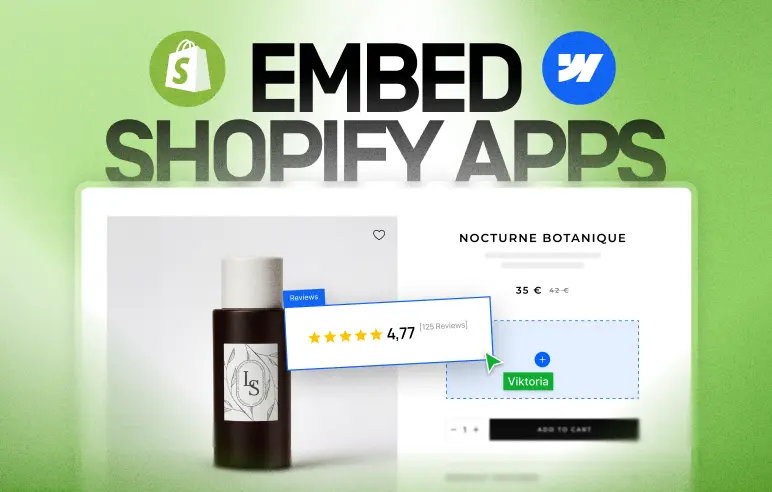
Embedding apps directly into your Shopify theme allows you to create more dynamic and interactive storefronts. Whether you're adding product reviews, star ratings, or newsletter signups, a custom approach ensures these elements fit perfectly within your brand's design.
Why Embed Apps?
- Customization: Tailor the placement and appearance of app features.
- User Experience: Create a seamless journey for your customers by integrating tools like reviews directly where they're needed most.
- Flexibility: Easily adjust layouts to accommodate different screen sizes and user preferences.
Tutorial: Embedding Apps Using Custom Theme Blocks
In this tutorial, we'll explore how to use a custom theme block approach to embed app-driven features like the Judge.me review widget into your Shopify store.
Step 1: Set Up Your Custom Theme Block in Webflow
Before you can embed apps, you need a structure in your theme that can host them.
- Define Your Theme Block: In your design tool (like Webflow), create a
divblock and assign it the custom attributeli-cf-theme-blocks. This acts as a wrapper for your app elements. - Add Individual Blocks: Within your wrapper, add more
divblocks for each feature you want to include (e.g., product title, vendor, or app widgets). Use the attributeli-block="YourBlockName"for each. - Specify Settings: For example use
li-settings:text="Text"
So in the end you have this structure
1<div li-cf-theme-blocks>
2    <div li-block="yourBlockName">
3        <div li-settings:text="Text">Text
4        </div>
5    </div>
6</div>
Step 2: Configure Your Shopify Theme
Once your custom blocks are defined, it's time to bring them into Shopify.
- Access Your Shopify Theme Editor: Navigate to your store's theme and open the customization settings.
- Add Custom Sections: Look for the sections you've created (e.g., "Product Hero" or "Flexi").
- Insert Your Custom Blocks: Within these sections, you can now add the specific blocks you defined in Step 1.
Step 3: Embed Your Desired Apps
This is where the magic happens! You can now add app-specific widgets into your custom blocks.
- Select Your App Widget: In the Shopify theme editor, click on "Add block" within your custom section.
- Choose from Supported Apps: Select the app you want to embed, such as Judge.me Star Ratings or Review Widget.
- Adjust Placement: Drag and drop the app widget into your desired custom block.
Step 4: Refine and Preview
- Test Different Layouts: Experiment with the placement of your app widgets to find the most effective design.
- Preview Your Changes: Use the Shopify preview feature to see how your embedded apps look and function on your live site.
- Save and Publish: Once you're happy with your layout, save your changes and publish your updated theme.
Conclusion
By leveraging custom theme blocks, you gain control over how apps are integrated into your Shopify store. This approach not only enhances the visual appeal of your site but also provides a more cohesive and engaging experience for your customers.