How to Build A Gymshark Inspired Hero Section
Learn how to build a fully editable, Gymshark-style hero section for Shopify using Webflow and Liquiflow. A step-by-step guide to creating responsive, custom Shopify Liquid sections without complex coding.

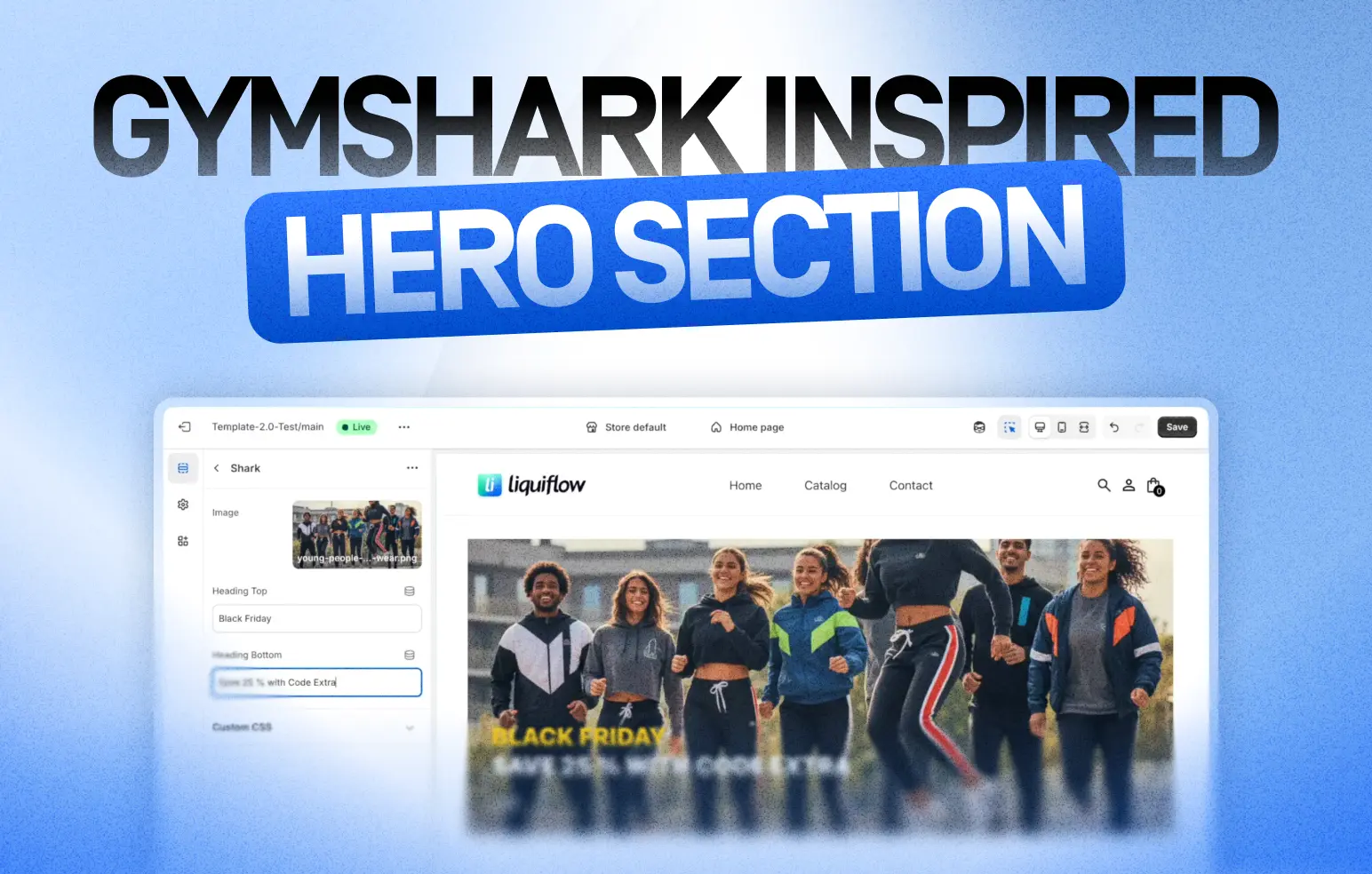
The high-energy, bold aesthetic of Gymshark’s e-commerce store is a benchmark for many fitness and lifestyle brands.
In this tutorial, we’ll walk through how to recreate that exact look using Webflow for design and Liquiflow to convert it into a fully editable Shopify section.
What You’ll Need
- Webflow: For visual building and styling.
- Liquiflow: To tag and convert Webflow elements into Shopify Liquid code.
- Shopify Store: To implement the final section.
Phase 1: The Visual Build in Webflow
We start by setting up the structure using the Client-First naming convention.
1. The Core Structure
Create your DOM structure with four main div blocks:
- Section Wrapper (
section_shark): Wraps the section. - Padding (padding-global): Adds top and bottom padding, and also on the left and right side
- Container (
container-large): Holds the inner content. - Content Wrapper (
shark_content): Set position to Relative. - Image Element (
shark_img): Set width and height to 100%.
2. Styling the Hero Image
To get that cinematic feel, we use an anamorphic ratio (widescreen) for the desktop view. Ensure the image is set to fit: cover.
Mobile Tip: On the mobile breakpoint, change the image ratio to Portrait (2:3). This ensures your background image is tall enough so the text overlay doesn't get cut off on smaller screens.
3. Absolute Positioning
To get the text to sit on top of the image (bottom-left corner):
- Add a
divinside the content wrapper calledshark_content_inner. - Set its position to Absolute.
- Set the Z-index to 2 (so it sits above the image).
- Apply Flexbox to align content to the bottom-left with a slight gap.
4. Typography & Links
- Headings: Use H3 tags but style them boldly. Make one heading white and the top one a bright accent color (like orange) to pop against the background.
- Category Links: Create a wrapper for your links. Style the text links to look clean, underlined, or button-like depending on your preference.
Phase 2: Liquiflow Tagging
This is where the magic happens. We need to tell the converter which elements should be editable in Shopify. We will use Liquiflow attributes for this.
li-section="shark": Defines the name of the new Shopify section. Also make sure to change the tag on this element ot Section.li-settings:image: Allows you to upload/swap images in the Shopify editor.li-settings:text: Makes the heading text editable. Name one "Heading Top" and one "Heading Bottom".
li-block="Categories": This turns the link wrapper into a repeatable block. You can add 1 link or 5 links directly in Shopify.li-settings:url: Makes the destination URL editable.
Phase 3: Export to Shopify
Once your design is tagged:
- Copy the Code: Copy the Section in Webflow
- Paste the Code: Paste the code in Liquiflow under Section Builder, it will generate all the needed code, copy the code on the top right
- Go to Shopify: Navigate to Online Store > Themes > Edit Code.
- Create Section: Under the "Sections" folder, create a new file named
shark.liquid. - Paste & Save: Paste your generated code into this file and hit save.
Phase 4: Customization in the Theme Editor
Now, you can use the section just like any native Shopify component.
- Open the Theme Customizer.
- Add Section and search for "Shark".
- Upload: Drop in your high-res fitness image.
- Edit Text: Change "Heading Top" to "Black Friday" and "Heading Bottom" to your discount code.
- Add Blocks: Use the "Add Block" feature to create multiple links (e.g., "Mens," "Womens," "Accessories") without touching the code again.
The Result
You now have a fully responsive, Gymshark-inspired hero section that looks professional on desktop and perfectly sized on mobile, all manageable directly from your Shopify dashboard.
Educational purposes only. Gymshark™ and its designs are used briefly for demonstration. Gymshark is not affiliated with this video. All trademarks are property of their respective owners.